How to Disable Premium Theme Activation Popups in WordPress — The Fix That Actually Works for Any Theme
Applies to: Soledad, Divi, Avada, Newspaper, Sahifa, JNews, and most other premium WordPress themes
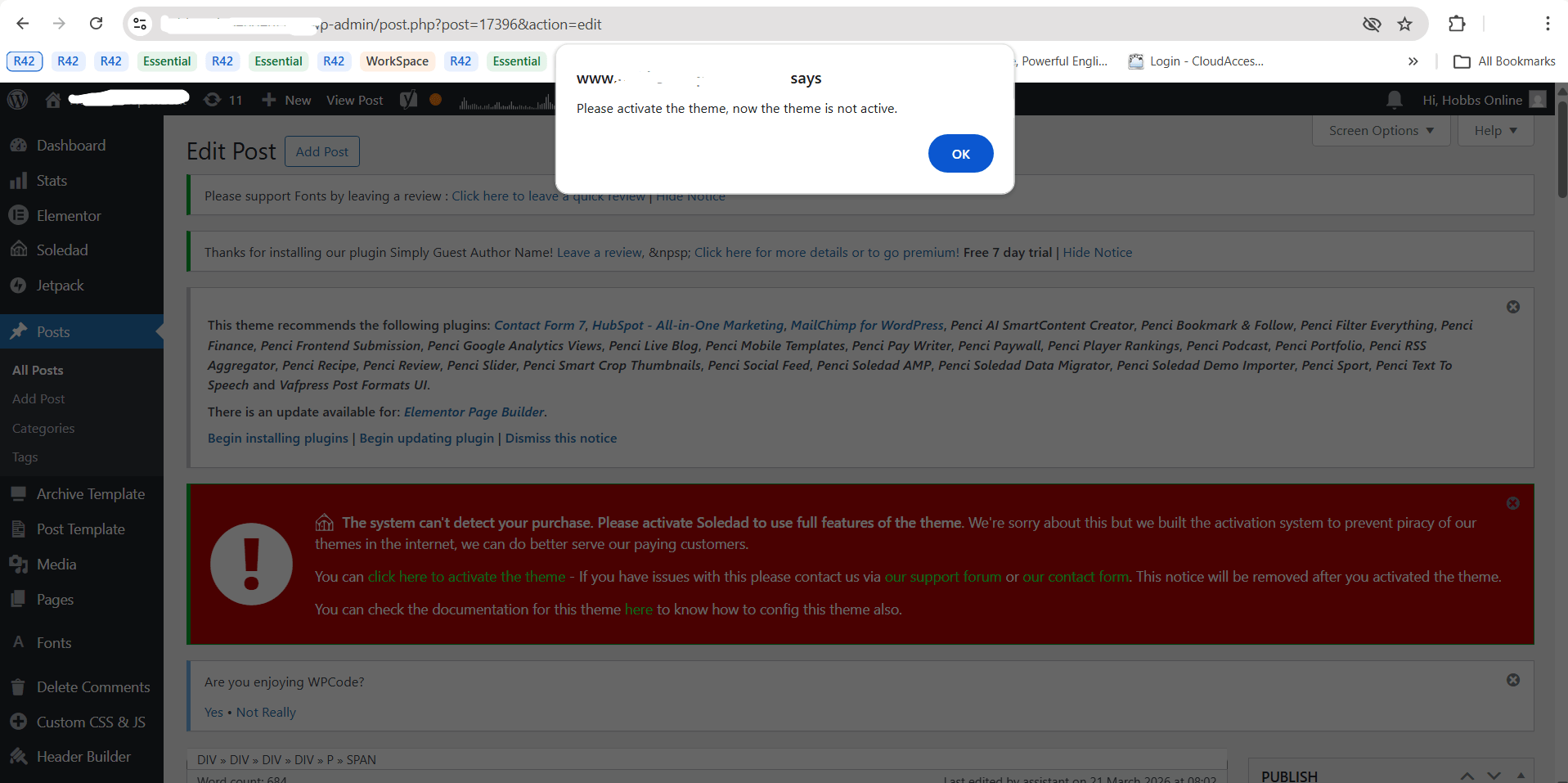
You open your WordPress admin dashboard and before you can do anything, a grey popup box appears in the middle of your screen. It displays your website’s domain name at the top and a message along the lines of “Please activate the theme, now the theme is not active.” You click OK. It disappears. You navigate to another page. It appears again.
This is one of the most frustrating experiences for WordPress users running premium themes without an active license key. Whether you are using Soledad, Divi, Avada, Newspaper, or any of the dozens of other popular premium themes, many of them use a similar method to remind you — persistently — to activate your purchase.
The good news is there is a single fix that works across virtually all of them. This guide explains exactly what causes the popup, why the obvious solutions fail, and the one method that actually gets rid of it for good.
Understanding the Problem: Two Types of Theme Notices
Before you can fix this issue, it is important to understand that not all theme activation notices are the same. There are actually two distinct types, and they require completely different solutions.
Type 1: WordPress Admin Notice Banners
These are the coloured banner bars that appear at the top of your WordPress dashboard — typically red, yellow, or orange. They are generated by PHP using WordPress’s built-in admin_notices hook. You have probably seen hundreds of these from plugins and themes alike. These can be hidden with CSS, removed with PHP, or suppressed using admin notice management plugins.
Type 2: Browser-Native Alert Popups
This is the more aggressive type — and the one this guide addresses. These popups are generated by JavaScript using the browser’s native window.alert() function. You can identify them immediately because they appear as a grey system dialog box, they display your website domain at the top (e.g. “www.yoursite.com says”), and they completely block the page until you click OK.
This type of notice is used by Soledad, and several other premium themes and plugins, precisely because it is harder to ignore and harder to dismiss with simple CSS or plugin-based solutions. It operates at the browser level, completely outside the WordPress notice system.
Why the Common Solutions Do Not Work
Most people try the following approaches first — and they all fail for the browser-native alert popup. Here is why:
CSS Hiding
Adding CSS rules to target notice class names — such as .penci-notice-activate { display: none !important; } — only works for HTML elements rendered on the page. A browser alert dialog is not an HTML element. It is a system-level dialog box that CSS cannot see, target, or control in any way.
PHP Hooks in functions.php or a Child Theme
Using remove_action() or remove_all_actions() targeting admin_notices works for WordPress PHP-generated notices. However, a JavaScript alert() call happens entirely in the browser after the page has loaded. PHP runs on the server before the page is sent to the browser — it has no ability to intercept or block a client-side JavaScript function.
Admin Notice Removal Plugins
Plugins such as “Disable Admin Notices” are excellent tools for cleaning up dashboard clutter from standard WordPress notice banners. They work by intercepting the PHP admin_notices hook. But just like PHP hooks, they cannot reach into the browser’s JavaScript execution environment and prevent a native alert() from firing. Installing one of these plugins will not solve the browser popup problem.
The Solution That Works for Any Premium Theme
Since the problem is a JavaScript alert() call, the solution is also JavaScript. By overriding the browser’s native window.alert() function inside the WordPress admin area, you prevent any theme or plugin from being able to fire an alert popup. The cleanest way to implement this without touching theme files is using the free WPCode plugin.
This approach has been confirmed to work with Soledad, and applies equally to any other theme or plugin that uses the same window.alert() method for its license notice.
Step 1: Install the WPCode Plugin
- Go to Plugins > Add New in your WordPress dashboard.
- Search for WPCode.
- Install and activate the free version by WPCode Team.
Step 2: Add a New Custom Snippet
- In the sidebar, click Code Snippets (WPCode) > Add Snippet.
- Select Add Your Custom Code (New Snippet).
- Give it a name such as “Disable Theme Alert Popups”.
Step 3: Select JavaScript as the Code Type
In the code type dropdown at the top right of the editor, select JavaScript. This step is critical — the snippet must be JavaScript, not PHP. If you leave it as PHP, the code will not work and may cause errors.
Step 4: Paste the Code
Paste the following code into the snippet editor:
if (window.location.href.indexOf(‘/wp-admin/’) > -1) {
window.alert = function(){};
}
Here is what each part of this code does:
- window.location.href.indexOf(‘/wp-admin/’) > -1 — this condition checks whether the current page URL contains /wp-admin/. This ensures the code only runs inside your WordPress admin, never on your public-facing website.
- window.alert = function(){} — this replaces the browser’s built-in alert() function with an empty function that does nothing. When any theme or plugin calls window.alert(), it now fires silently without showing a popup.
Step 5: Set the Location and Activate
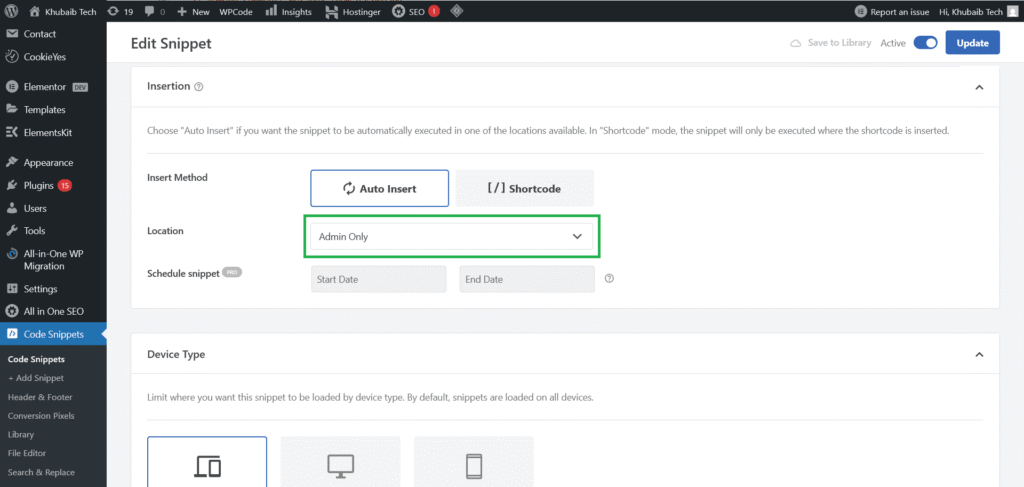
- Scroll down to the Location / Insert section.
- Set it to run on Admin Pages only, selecting any other option like Run Everywhere doesn’t work.
- Toggle the snippet status to Active.
- Click Save Snippet.
Step 6: Test the Result
Refresh your WordPress admin page. The browser alert popup should be completely gone. You can navigate around the dashboard freely without any interruption. The fix is permanent as long as the WPCode snippet remains active.
Which Themes and Plugins Does This Fix Apply To?
This solution works for any theme or plugin that uses the browser’s native window.alert() function to display its license or activation notice. While it was confirmed working on Soledad by PenciDesign, it also applies to many other popular premium themes that use the same technique, including:
- Soledad by PenciDesign
- Newspaper by tagDiv
- Sahifa by TieLabs
- JNews by Jegtheme
- Any other theme or plugin using window.alert() for its activation notice
Note: Themes like Divi and Avada use different methods for their license enforcement — typically restricting access to updates and demo imports rather than triggering JavaScript alerts. For those themes, this specific fix is not required, but it will not cause any harm if applied.
Things to Keep in Mind
The Dashboard Banner May Still Appear
Many themes display both a browser alert popup AND a red or orange PHP-generated banner inside the dashboard. This solution only suppresses the JavaScript popup. If a banner notice remains, you can hide it by adding this CSS in Appearance > Customize > Additional CSS — replacing the class name with whatever your theme uses:
.penci-notice-activate,
.theme-license-notice {
display: none !important;
}
Premium Features Will Still Be Restricted
Hiding or disabling the activation notice does not activate the theme. Premium features such as one-click demo imports, automatic theme updates, and some customization options will remain restricted without a valid license. This solution only removes the visual interruption so you can work without constant interruption.
Your Website Front End Is Not Affected
The JavaScript snippet is scoped to /wp-admin/ URLs only. Everything on the public-facing side of your website remains completely unchanged. Your visitors will see no difference whatsoever.
Security and Updates Risk
Running a premium theme without a valid license means you will not receive automatic updates. Theme updates often include important security patches. If you are using this fix on a production website for an extended period, be aware of this risk and monitor the theme developer’s changelog manually.
The Right Long-Term Solution
If you are using a premium theme on a live website, purchasing a legitimate license is always the best path forward. A one-time ThemeForest purchase — typically between $59 and $79 for most popular themes — gives you full access to all features, ongoing updates, and direct support from the theme developer. For a production website, the cost is a worthwhile investment in security and stability.
That said, the solution in this guide is a legitimate and practical workaround for development environments, staging sites, or temporary situations where the activation popup is blocking your workflow.
Conclusion
The reason most people struggle to remove premium theme activation popups is that they are dealing with a browser-native JavaScript alert() — not a standard WordPress admin notice. CSS cannot touch it, PHP cannot intercept it, and admin notice plugins cannot suppress it.
The fix is to fight JavaScript with JavaScript. By overriding window.alert() in the admin area using a simple WPCode snippet, you permanently silence any theme or plugin that uses this method to display its activation notice — whether that is Soledad, Newspaper, Sahifa, JNews, or any other premium theme.
Install WPCode, add the snippet, save it, and refresh. The popup will be gone.